

Switching IT providers is a decision most business owners put off longer than they should. Tickets sit for days. The same problem comes back a month after it was “fixed.” Nobody can tell you in plain English what the monthly fee covers. And still you stay, because the provider you’re unhappy with is the only one who knows where everything is: the passwords, the licenses, the box in the closet nobody is allowed to unplug.
That’s a solvable problem. Whether you’re leaving a local IT company or working out how to switch managed service providers (MSPs), the process is the same. This guide walks through it in four steps, from before you give notice to after the switch. At the center is a list of what to get from your old provider, written so you can copy it. It also covers the cameras, door access and phones that share your network, and how to keep them working through the switch.
Signs it’s time to switch IT providers
Not every bad month means it’s time to leave. But some patterns rarely fix themselves:
- Problems come back after they’ve been marked as fixed.
- Tickets wait days for a first response, not hours.
- You can’t get a plain answer about what’s included and what costs extra.
- Your insurer sends a security questionnaire and nobody can answer it.
- The provider can’t or won’t touch anything physical, such as the cabling, the network closet or the equipment on the walls.
When to fix it instead of switching
Before you start over, ask whether the problem is the company or something you can fix:
- The wrong person. If one contact is the problem, ask for a different one.
- A scope nobody wrote down. If no one ever put in writing what the agreement covers, write it down together.
- A problem they’ve never heard about. If you’ve never told them what’s wrong, tell them.
Switching is worth the effort when the problem keeps coming back after you’ve raised it.
Step 1: Before you give notice
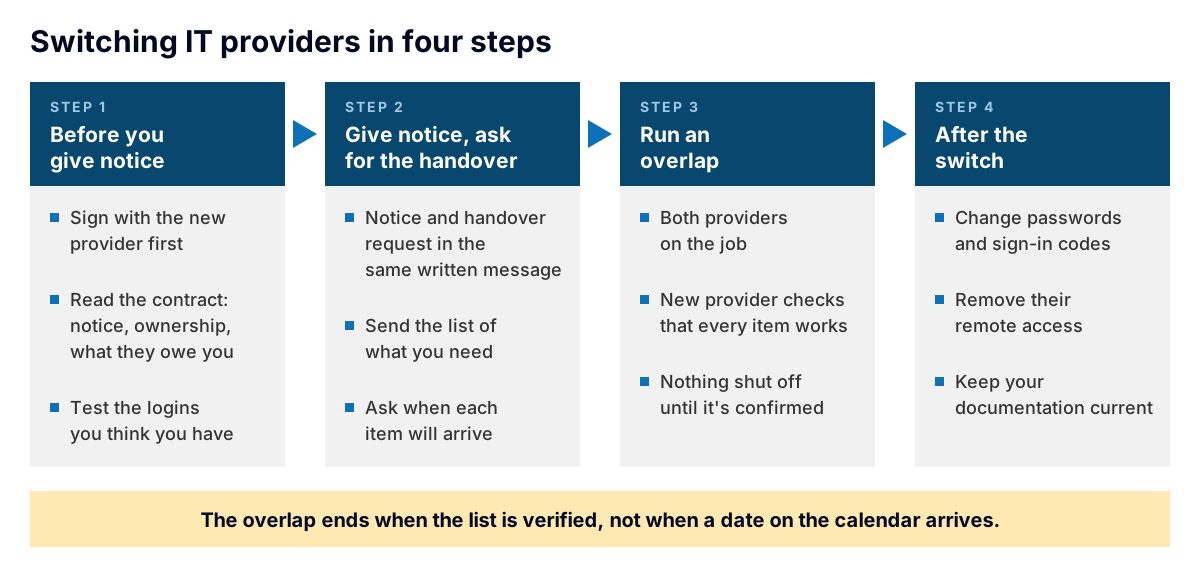
The list in Step 2 is the same list the new provider checks off during the overlap.
Choose the new provider first. The worst version of a switch is the gap: the old provider is gone, the new one hasn’t started, and something breaks. Pick and sign with the new provider before you tell the old one. Our guide to managed IT services covers what to ask before you sign.
Read your contract for three things. Find the notice period. Find out which equipment and software belong to the provider rather than to you. And look for what they owe you when the agreement ends, such as documentation, passwords or help during the move. You’re reading to know where you stand, not to start an argument.
Test what you can already get into. You probably believe you have the logins for your email, your domain and your firewall. Try them. Any that fail, or that you’ve never had, go to the top of the list in the next step.
Pick your moment. Don’t switch during your busiest season or the week of a big deadline. If an office move or renovation is coming, the timing question is bigger. See the FAQ below.
Step 2: Give notice and ask for the handover
Give notice in writing, the way your contract asks for it, and ask for the handover in the same message. Include the list below and ask when you can expect each item. Most providers hand this over professionally. Some call the process “offboarding,” meaning the steps they follow when a client leaves. Either way, these items belong to your business, and you need them before the old provider stops answering the phone.
What to get from your old IT company
Accounts and logins
- Administrator access to your email and office platform
- Your domain registrar account and DNS settings (these control where your email is delivered, even if a different company handles your website)
- Your website hosting account, if your IT company manages it
- Your firewall, network switches and Wi-Fi
- Any servers, on site or in the cloud
- Your backup system
- The sign-in verification on each administrator account (the code sent to a phone or an authenticator app), moved to your own people
Each of these should be in your company’s name, on a company email address, not the provider’s.
Licenses and subscriptions
- A list of every license and subscription they manage for you, with renewal dates
- For each one, how it moves to you or to the new provider. Licenses bought through a provider can sit under the provider’s own account.
Documentation
- A list of every device they manage, with warranty dates where they have them
- A network map and your IP addressing
- Cabling records: what runs where, and how it’s labeled
- Your internet provider’s account details
Backups
- Where the backups are, how often they run, and what’s included
- Who holds what’s needed to restore them, such as passwords or encryption keys
- A test restore, done before the switch, so you know they work
Remote access
- Every remote-access tool and account the provider uses to reach your systems, so each one can be removed later
Open issues
- Known problems, open tickets, and anything they’ve been meaning to get to
Physical access
- Keys, codes or cards for the network closet
- A list of anything of theirs installed on site
Security and phone systems
- Administrator logins and documentation for your cameras, door access and phone system, even if a different company installed them (more on why below)
If something on this list can’t be handed over, find out why before your notice period ends. “We’ll get to it” is easier to resolve while you’re still a client.
Step 3: Run an overlap
For a set period, both providers are on the job. The old provider is still responsible and still reachable. The new provider works through the list above and confirms each item actually works.
During the overlap, the new provider logs in with every credential and documents what’s really there, which is rarely an exact match for what’s on paper. They install their own monitoring and support tools. They run the test restore. Accounts that were sitting on the old provider’s email addresses move to your company’s addresses. And the old provider answers questions as they come up, because every network has a few things that only make sense once someone explains them.
The most important rule: nothing gets shut off until the new provider confirms its replacement works. Not the old remote-access tool, not the old backup, not the old provider’s admin account.
Yes, that means paying two providers for a while. It’s usually a smaller cost than a gap where nobody is responsible when something breaks.
How long should the overlap last? Long enough to verify the list. A small office with clean records may move quickly; a business with years of undocumented changes won’t. The overlap is over when everything on the list is checked off, not when a date on the calendar arrives.
Step 4: After the switch
Once the new provider has confirmed everything, close the door behind the old one.
- Change every password the old provider knew. Start with administrator accounts, email, the domain registrar and the firewall. Make sure no sign-in codes still go to their phones or apps.
- Remove their remote-access tools and accounts. Use the list you collected, so nothing gets missed.
- Confirm license billing has moved. Check the next invoice, and make sure you’re not paying twice or about to lose a subscription.
- Tell your vendors who your new contact is. Your internet provider, phone company and software vendors often won’t talk to someone who isn’t listed on the account.
- Keep the documentation current. It’s yours now. Ask the new provider to update it whenever something changes, and keep a copy where you can reach it.
Your cameras, doors and phones are on the same network
Switching IT providers is mostly about accounts and software. But your network also lives in a building. There are switches in a closet and structured cabling in the walls, and that network isn’t only carrying laptops. Security cameras, door access, intercoms, phones and conference room AV often run on it too, usually installed by a different company that isn’t part of your IT switch at all.
That’s where IT changes go wrong. The new IT provider changes the firewall, the network addressing or a switch, and the cameras stop recording or a door reader stops talking to its controller. The security company says it’s a network problem. The IT provider says it’s a security problem. Changing providers is the biggest hand-off a system ever goes through, and with separate IT and security vendors you’re really running two handovers that depend on each other.
That’s why the handover list includes your security and phone systems, even if those companies aren’t changing. Whoever takes over the network needs to know what depends on it.
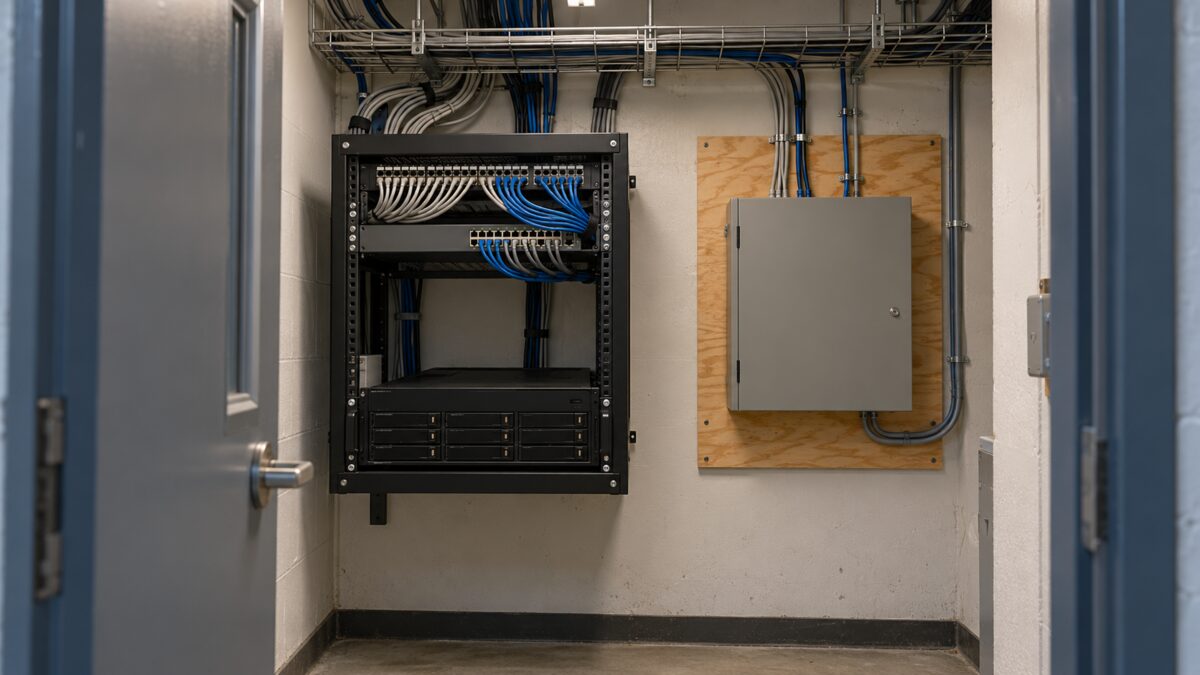
One closet, three systems, and often three different companies responsible for them.
Can I use my old security cameras on a new system?
Often, yes. Many business cameras follow common industry standards (such as ONVIF) that let other recorders and software work with them. Others only work with one manufacturer’s recorder or cloud service. Two things usually decide it: whether you have the administrator logins for the recorder and the cameras, and whether the cameras are new enough to still get security updates. Get the logins on your list either way.
Door access needs the same handover
Your door system has an administrator account, a list of people and their credentials, and a history of who opened which door. It needs the same handover as everything else. Our guide to access control systems for business explains how these systems work, and our post on who owns your access control data covers the questions to settle about the account and the records.
Questions to ask your new provider about the switch
Ask these before you sign, alongside the usual questions about choosing a provider. They’re about the switch itself.
- If our cameras, door access or phones share the network, do you work as a systems integrator, responsible for how all of it works together, or only on IT?
- Who on your side runs the overlap, and who do I call during it?
- What will you document first, and do I get a copy?
- Will you request the handover items from my old provider directly, or do you need me to?
- What happens to our cameras, door access and phones during the switch?
- If any part of this goes to another trade, who holds that contract, you or me?
Frequently asked questions
How do we switch IT providers without downtime?
Sign with the new provider before you give notice, so there’s never a gap where nobody is responsible. Then run an overlap where both providers are on the job, and don’t shut anything off until the new provider confirms its replacement works. Most downtime during a switch comes from something nobody wrote down, which is why the handover list matters.
What should we get from our old IT provider before we leave?
Administrator logins for every system, in your company’s name, with sign-in verification moved to your own people. A list of licenses and subscriptions with renewal dates. Documentation, including a device list, network map and cabling records. Backup details and a test restore. And a list of every remote-access tool the provider uses, so each one can be removed after the switch.
Will switching IT providers affect our security cameras or door access?
It can, if they share your network. Changes to the firewall, network addressing or switches can stop cameras from recording or door readers from talking to their controllers. Before the switch, tell the new provider what else runs on the network, put your security company’s logins on the handover list, and test those systems after each change.
We’re moving offices or renovating. Should we switch IT providers before or after?
Before, with lead time. Bring the new provider in before move or renovation plans are final and before walls and ceilings close, because that’s when cabling, the network closet, and camera and Wi-Fi locations get decided. Don’t hand the move to a provider you’re about to leave. And if you can, finish the handover before the move starts, so you’re not running two big changes at once.
Do we control our domain and email if our IT company set them up?
You should, but check. Make sure the domain registrar account and the email administrator account are in your company’s name, on a company email address, and that someone at your business can log in to both. If they sit in the provider’s own account, moving them into yours is part of the handover.
Start with the list
You don’t need to have chosen a new provider to start. Work through the checklist above with your current one; asking for copies of your own documentation isn’t giving notice. If you can’t get the answers, that tells you something too.
Bestegra designs, implements and supports IT, security, and the cabling and network underneath both. That means one handover instead of several, and the crew running cable and installing devices works for Bestegra. See our IT and cybersecurity solutions for the full list. If you’re weighing a switch, get in touch and bring your list. We’ll talk through what’s on it.